
Play starts
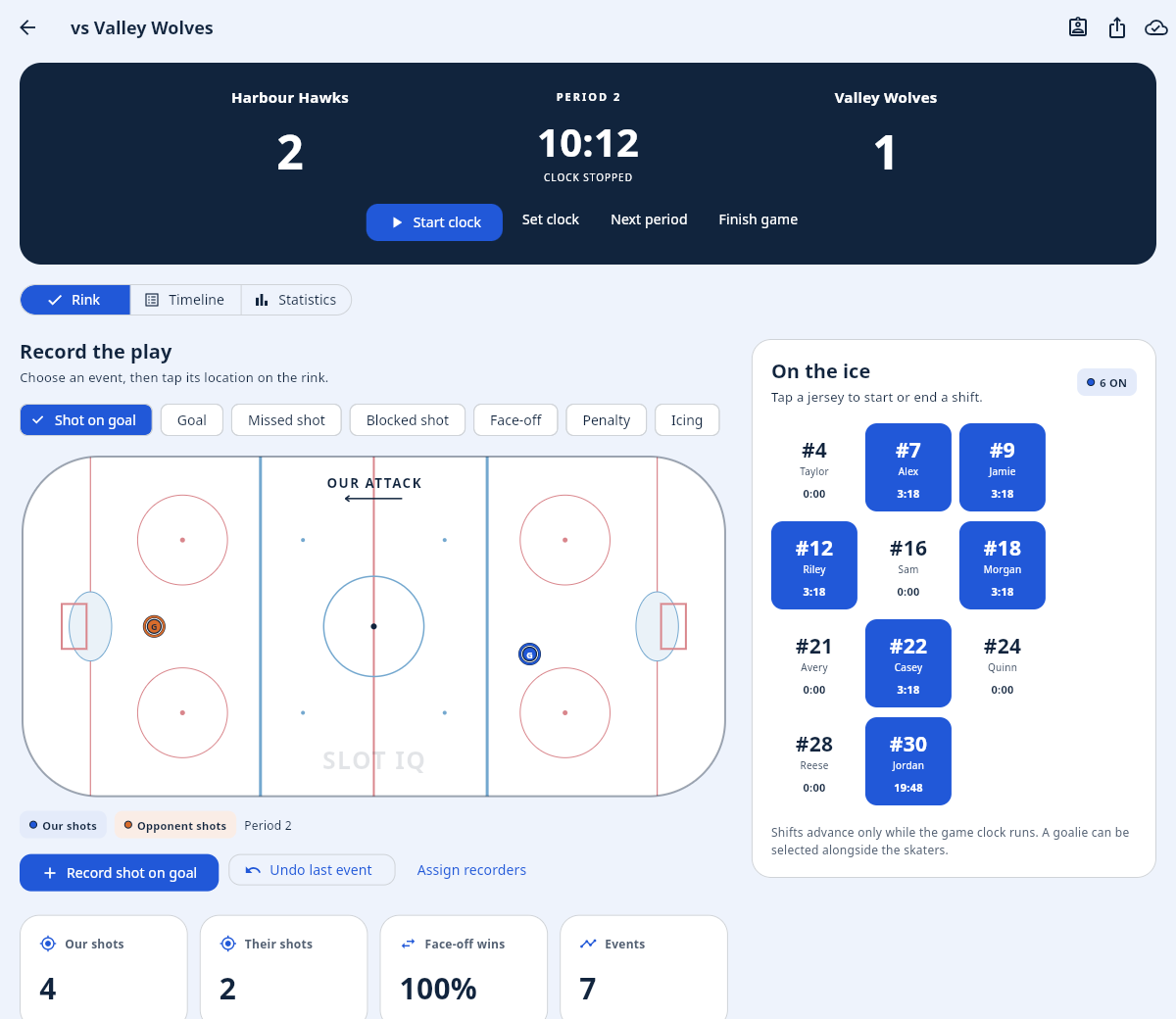
Timekeeper: select the players, then tap Start clock.
Already recording here? Sync pending changes before installing.
A practical companion for the person behind the stats. Set up your team, share the duties, and record the game with confidence.
Screenshots use a sample team and fictional players. Tap any screenshot to open it at full size. Controls may be arranged differently on a phone.
LET’S TRY ANOTHER PLAY
Try a shorter term, such as shot, clock, password, or sync.
BEFORE THE PUCK DROPS
Do the setup while you have a connection. A few minutes here means fewer taps when the game gets busy.
Use the account supplied by Support, your Team Creator, or a Coach. Open Account → Change password to replace an initial password, or try a separate practice game first.
With Team Creator permission, choose Create team and enter a team name and season. Otherwise, select a team you have been added to. A Team Creator or Coach can open Roster → Add player. Jersey numbers make player selection quick.
From Games → New game or Set up a game, choose a saved opponent, or use Add opponent to save a new one. Enter the period length, date, and home/away setting, then choose Create game. You can confirm the period length on the game screen before play starts.
The creator initially holds every duty. Use the cloud icon and Sync now to upload the new team and game. If others are helping, add their accounts through Account → Team access, then use Assign recorders in the game. See the five duties.
Have each recorder sign in and sync on their own device. The timekeeper taps the starting players under On the ice, then chooses Start clock when play begins.
Choose Finish game → Finalize, review the timeline and statistics, sync every recorder’s device, and export the game report.
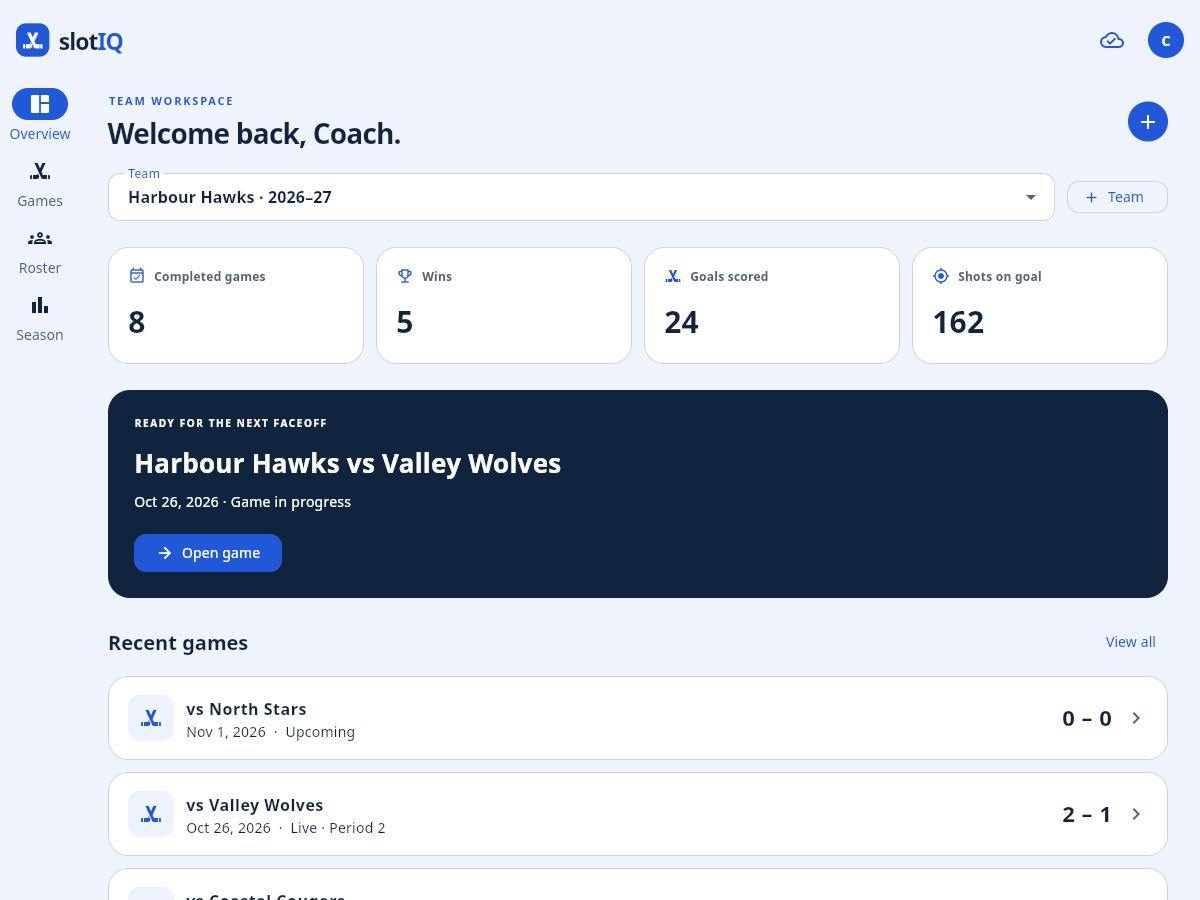
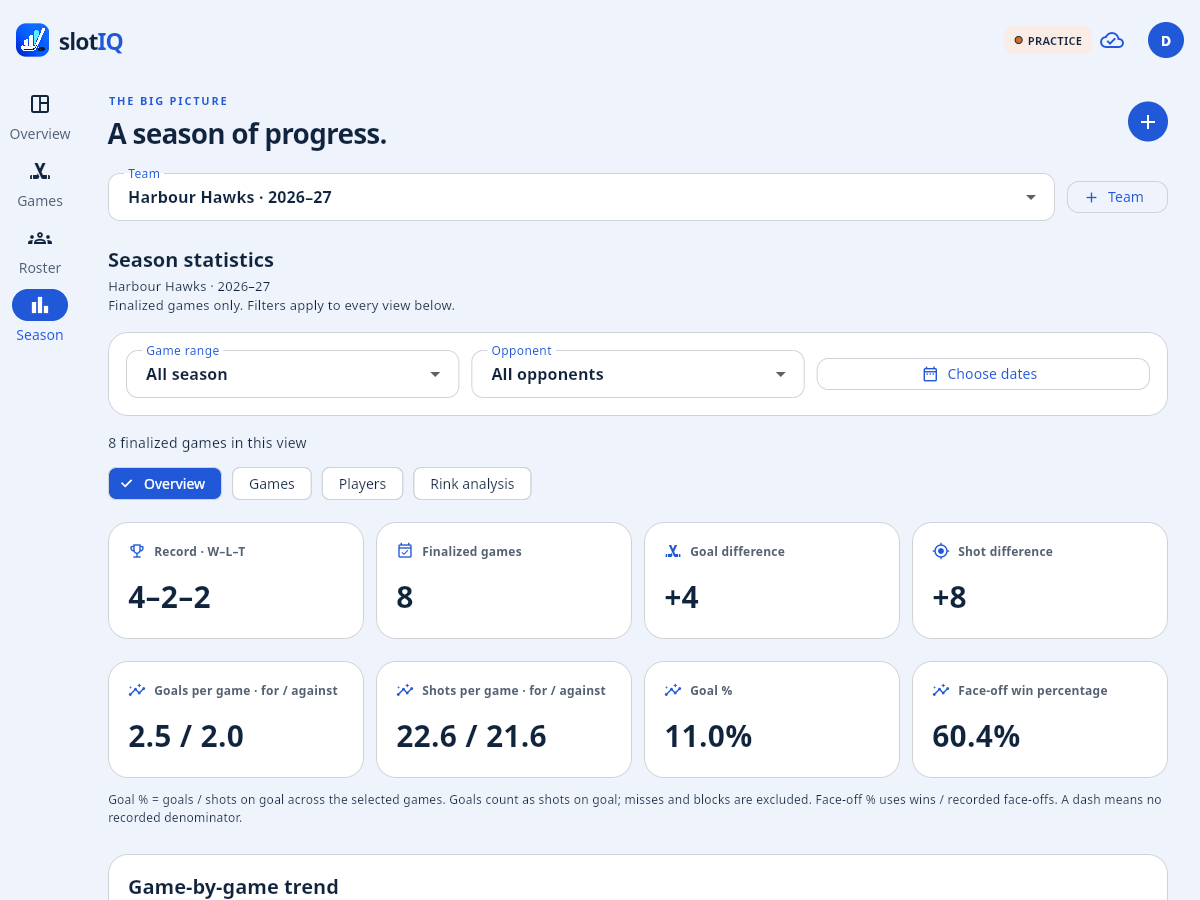
Practice includes eight completed games and one live recording game. Choose Explore sample season on the practice overview to try season filters, player statistics and rink analysis immediately.
KEEP THIS HANDY
Timekeeper: select the players, then tap Start clock.
Tap Stop clock. Ice time stops accumulating too.
Tap the departing jersey off, then the incoming jersey on. Keep the clock running during live play.
Choose its event type, tap the rink location, check the details, then Save event.
The compact phone layout puts the scoreboard, event picker, rink and Record button together. Start clock / Stop clock stays at the bottom while you scroll. Switch to Lineup to tap substitutions, then back to Record. Use the top-right Game actions menu for Set clock, Next period, Finish game, assignments and reports. Tablet and desktop views keep their larger side-by-side panels.
When the main clock scrolls out of view, a fixed top bar shows the period, countdown and running/stopped status. The timekeeper's Start clock / Stop clock and Set clock controls move there too. Scroll back to the scoreboard to return the controls to their usual place. Other viewers can still see the clock, while their recording permissions stay the same.
The web app automatically asks the browser to keep the screen on while an unfinished game is open, including during setup and pauses. It releases that request when you leave or finish the game, or hide the app, and requests it again when you return. Low battery, power-saving settings or browser support can prevent this. If the Screen may turn off icon appears, open it for help and Try again when available. If the browser cannot keep the screen on, increase the device's screen timeout while recording.
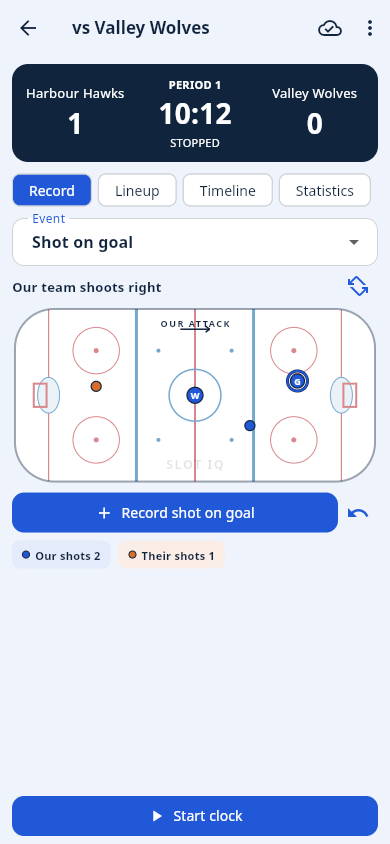
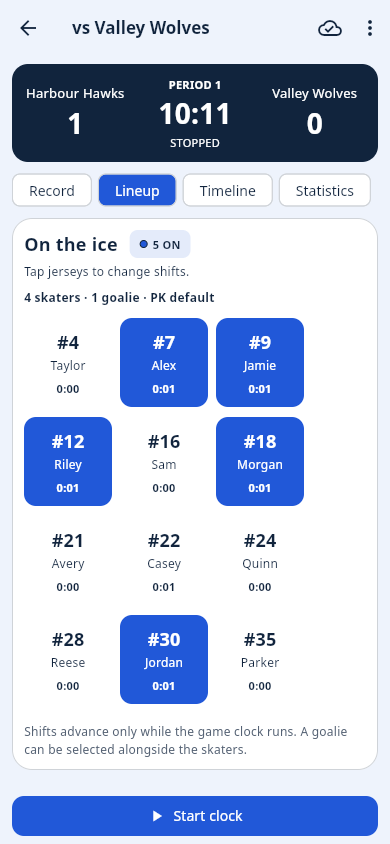
Next period closes the current shifts and loads the next period's planned length, paused. Select the next lineup and press Start clock for the next face-off.
If the clock looks delayed on another device, confirm the actual period and time in the event form. A disconnected recorder cannot see a pause or substitution immediately.
YOUR TEAM WORKSPACE
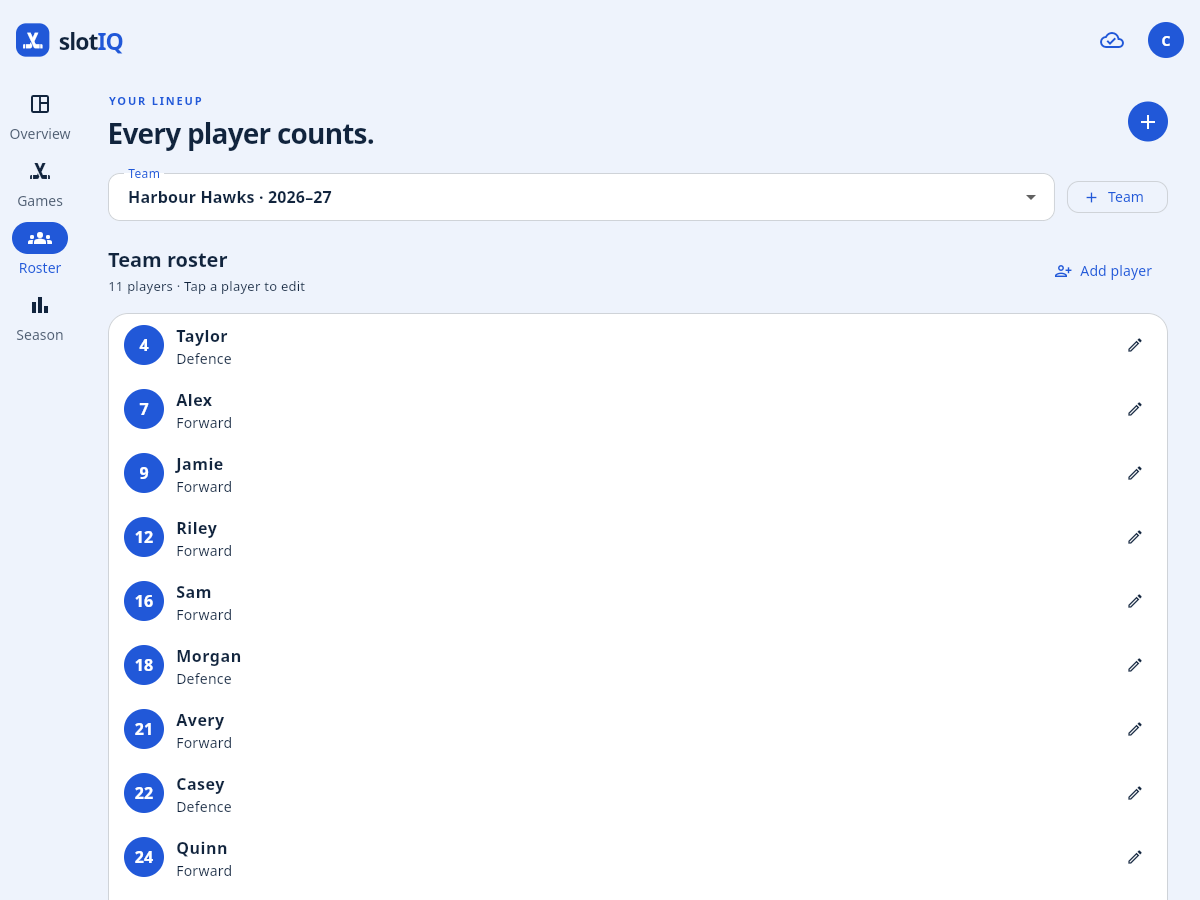
Use the team selector on the home screen to switch teams. The four main views are Overview, Games, Roster, and Season.
To correct a team name or season, select the team and open Account → Edit team. Team Creators and Support staff can save these changes without replacing the team or its records.
In Roster, choose Add player. Enter the Jersey number, optionally a player name, and select Forward, Defence, or Goalie. Tap an existing player to edit them, then choose Save player.
The Active roster switch on an existing player controls whether they appear in the active lineup choices. Deactivating a player keeps their past recorded statistics.
Choose New game and check Opponent, Period length (minutes), the game date, and We are the home team. You can find the game again under Games or use Open game from the overview.
For uneven periods, enable Use separate period lengths and enter Period 1, Period 2 and Period 3. A game with two 12-minute periods and a 15-minute third period uses 12, 12, 15. Leave the switch off when all three periods have the same length.
Use the current web app on every recording device for unequal-period games. The optional native Android APK predates separate period lengths.
The Opponent dropdown uses your team's saved list. Use the labeled Add opponent button on Overview, Games, or Manage opponents. While setting up a game, use the same button or choose Add new opponent... inside the dropdown, even when your list is empty. Open Manage opponents or Account → Opponents to edit names. Team Creators and Coaches can manage the list; it saves offline and syncs with the team. Names differing only by case or extra spaces are treated as duplicates. Renaming or removing a saved opponent does not change the names already recorded on past games.
Team Creators and Coaches can add or edit players and create games. People with View only access can follow the team without recording changes.
SHARE THE VIEW, SPLIT THE WORK
Each game has five duties. Assign different people to different duties, or give everything to one person. Each duty has one assigned recorder.
| Duty | What it controls |
|---|---|
| Shots & goals | Shots on goal, goals, missed shots, and blocked shots |
| Face-offs | Face-off events and win/loss recording |
| Penalties | Penalty events and minutes |
| Clock & ice time | The game clock, periods, player shifts, and finalizing the game |
| Other events | Icing |
The Team Creator or Coach opens Assign recorders or the Recording assignments icon, chooses a person for each duty, then selects Save assignments. Assign everything to me fills all five choices at once.
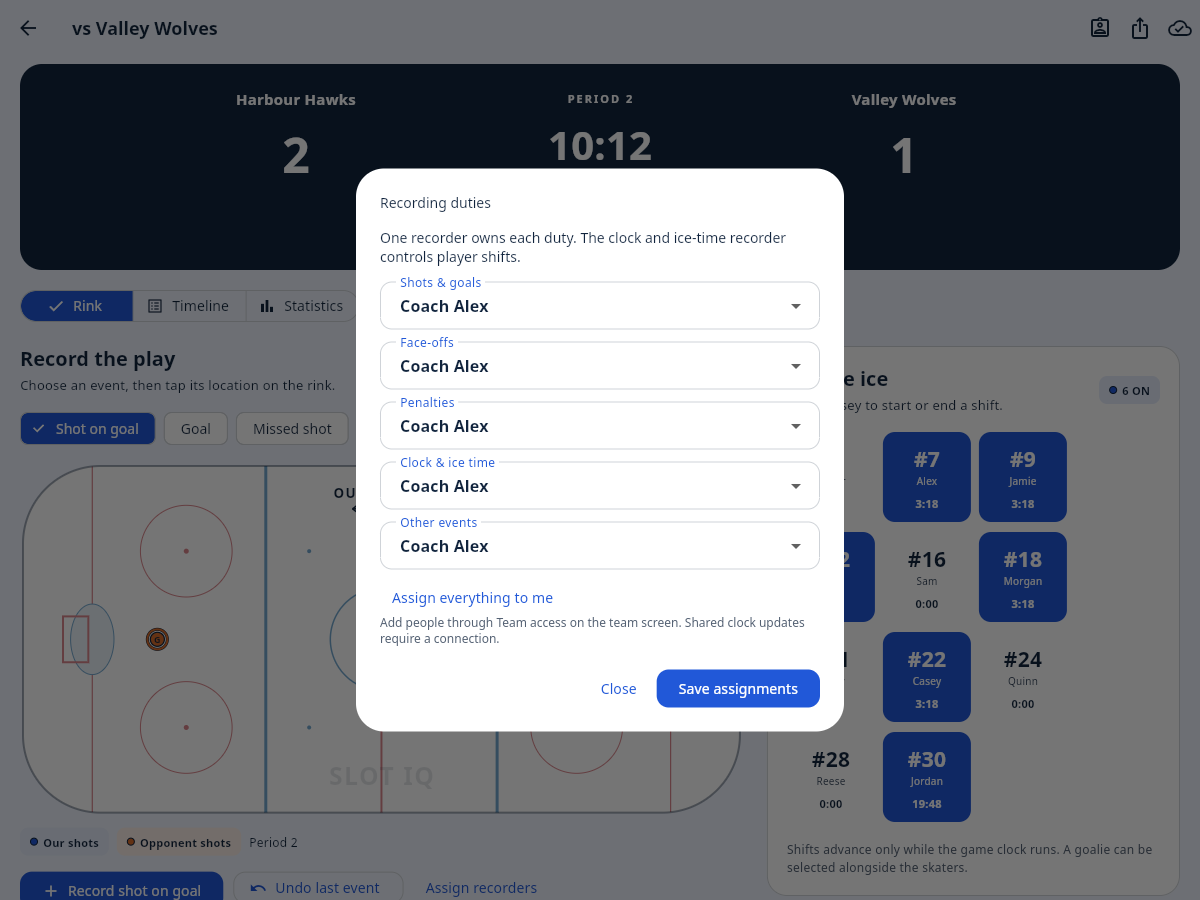
Assigned recorders handle new plays in their category and the assigned timekeeper handles the clock and live shifts. Team Creators and Coaches can correct, remove and restore existing plays and edit completed shifts without taking over those duties. Support staff can help across duties; support changes are recorded in Activity.
Use separate accounts for separate people. Team access and the recording-assignment screen need a connection. Connect and sync all devices before a handover so everyone sees the current assignments and lineup. An edit queued under an old assignment may be rejected after a duty changes.
TWO CLOCKS, ONE GAME
The scoreboard counts down the period. Player ice time counts the playing time recorded while their shift is active. Stoppages do not add ice time.
SCOREBOARD
08:42
Time remaining in this period. Use Set clock to match the rink scoreboard.
PLAYER ICE TIME
04:18
Accumulated running-clock time. Correcting the scoreboard does not erase it.
Not sure of the period lengths when scheduling? Open the game before play starts and choose Change beside the period lengths, or Game actions → Change period length on a phone. Enter one length for all periods, or enable Use separate period lengths to set each of the three periods. Each accepts 1–60 whole minutes. Saving resets the first-period countdown to its full length. You can select the starting lineup first. A Team Creator or Coach assigned to timekeeping, or Support, can change this setting. The plan is locked once the game has started or plays have been recorded.
Period 1 starts at 12:00. Next period loads 12:00 for Period 2, then 15:00 for Period 3. Use Set clock for scoreboard corrections during play; this does not change the planned lengths or erase accumulated ice time. Event times must fit their own period. Additional periods use Period 3's length; set the clock shorter if overtime uses fewer minutes.
Under On the ice, tap a player’s tile to open or close their shift. Take the departing player off, then add the replacement. You can select up to six skaters and one goalie; remove the current goalie before selecting another. Changes happen one player at a time; there are no saved lines or one-tap line changes.
For a completed shift, open Correct game → Edit ice time and choose Edit shift. Correct the period and start/end elapsed playing times. These times count up from the start of the game, across periods. The shift must fit within the recorded playing time and must not overlap another shift for that player. Team Creators, Coaches, Support staff and the assigned timekeeper can make these corrections, including after the game is final.
During a stoppage, choose the players who will take the next face-off while the clock is paused. Their ice time starts accumulating when you restart the clock.
Finish game → Finalize stops the clock and closes open shifts. You can still correct recorded plays and completed shifts through Correct game. If the game was finished by mistake or needs a missing play added, a Team Creator, Coach or Support Administrator can choose Reopen finished game. The clock stays stopped until it is deliberately started.
CAPTURE THE PLAY
Select the scorer and up to two assists for your team. Check Our skaters on the ice · plus/minus and the Our team strength setting.
Use Our team won the face-off for the result, or enter Penalty minutes. Add an optional note if it will help later.
Our team strength always describes your team. One to four selected skaters defaults to Penalty kill (PK); goalies do not count. Five or more skaters defaults to even strength. With no skaters selected, strength stays even until you choose it. Override this for power plays, 4-on-4, 3-on-3, a pulled goalie or an incomplete lineup. Recording a penalty does not start a penalty timer or change the lineup.
For a face-off, choose your player and the Face-off location, then switch Our team won the face-off off for a loss. Left and right are from your skaters’ perspective facing the attacking goal. Opponent events do not track named opponent players.
Use Flip rink view so the displayed shooting direction matches your seat. This rotates the rink on this device, including saved markers and new taps; other recorders keep their own view. The preference is saved for this account and game. The attack direction alternates when the period changes.
The event time is captured when you open the form, so filling in the details does not keep moving its timestamp. Correct Period and Time remaining (m:ss) if you are entering a play late or another device’s clock is delayed.
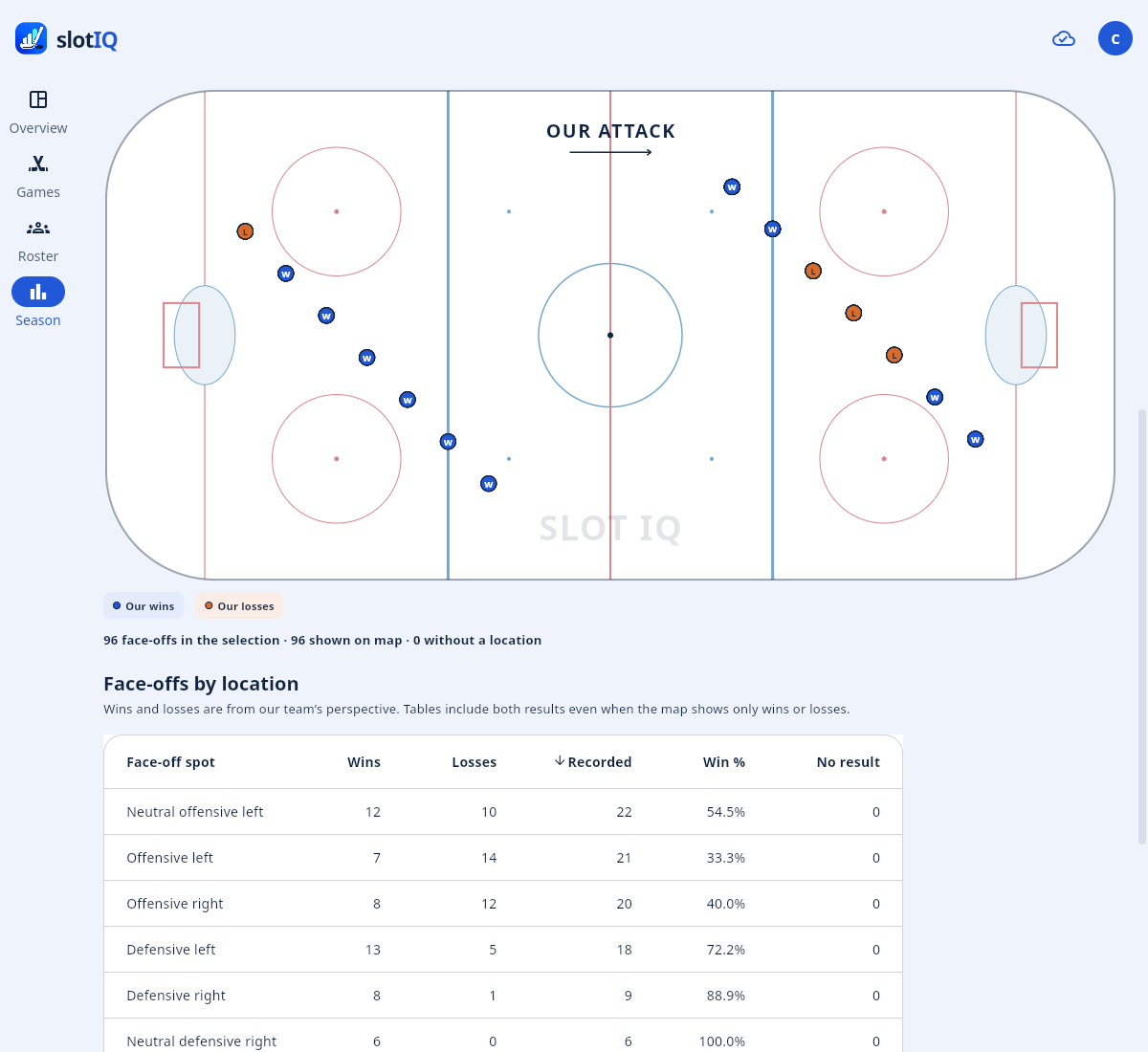
The rink’s OUR ATTACK arrow shows the displayed attacking direction. Our team and opponent use separate marker colors; a ring and G identify a goal, a slash marks a miss and a square marks a block. Face-off markers use W and L for our result. The live rink shows the current period; Statistics → Rink analysis compares periods with the attacking direction aligned.
Choose Correct game on the game screen. Use Edit game details for the opponent, date, time or home/away setting, or Correct a recorded play to open the timeline. Each play has labeled Edit and Remove controls. The edit form lets you correct the play type, player, assists, team, period, clock time, location and other recorded details.
Removing a play asks for confirmation. Use the immediate Undo action, or expand Removed plays in Timeline and choose Restore play later. A restored play keeps its original identity, including in a finished game. Team Creators, Coaches and Support staff can correct existing plays; other recorders can correct their assigned categories. View-only accounts cannot edit.
Existing plays and completed shifts can be corrected while the game stays final. To add a missing play or resume recording, a Team Creator, Coach or Support user chooses Correct game → Reopen finished game and confirms. Reopening needs a connection and synced changes; it keeps the clock stopped and preserves recorded plays and ice time. Finish the game again when done so it returns to season statistics.
To correct a location, open the event in Timeline and tap its new position on the form’s rink, or choose a different face-off dot. Older face-offs without a recorded location may remain unlocated when you correct their result.
SAVED HERE. SHARED WHEN CONNECTED.
Sign in and sync your devices before going offline, then stay signed in. SlotIQ saves changes on the recording device and queues them for upload. Separate recorders can save independent plays offline and send them when a connection returns.
Sync runs automatically on every screen, including Overview, Games, Roster and Season. SlotIQ retries when the browser reports that the connection has returned and when you return to the app. It also checks regularly while open, so another recorder’s uploaded game can appear without pressing a button. Keep SlotIQ open and signed in until its waiting changes have uploaded.
A closed or suspended web app cannot reliably upload in the background. Open the original recording browser or installed app when you have internet again. Practice games stay separate and are never uploaded.
Other devices cannot immediately see a pause, substitution, or changed assignment while disconnected. They may show an older clock or lineup. Confirm those details when recording a play, especially a goal.
Open the cloud icon, labelled Sync & saved changes on the home screen or Sync status in a game. The Saved & synced dialog shows changes waiting to upload, the last completed sync check, any error, and Sync now for an immediate manual attempt. After reconnecting, allow automatic sync to finish and check that no waiting changes, errors or conflicts remain on every recorder’s device. Conflicts and expired sign-ins still need attention.
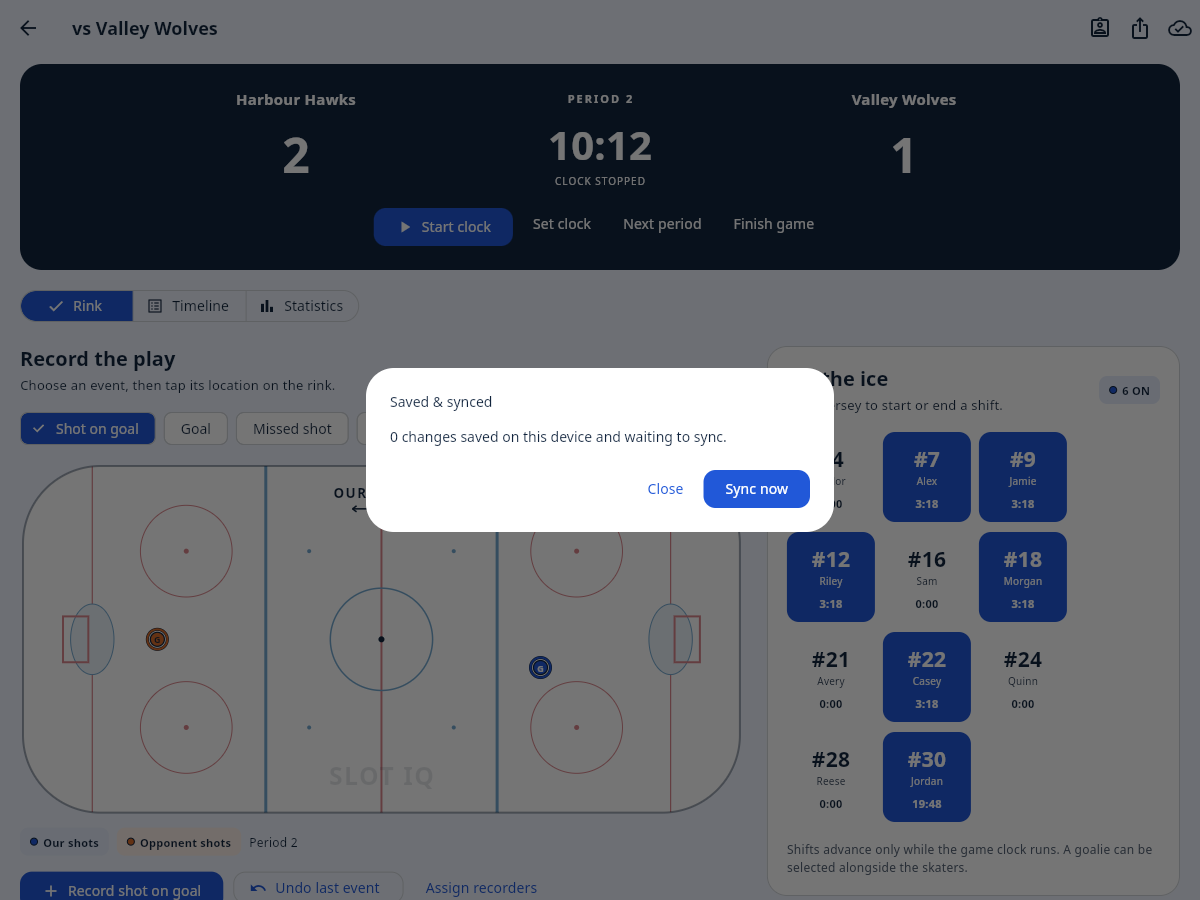
A conflict can happen when the same saved record changes on different devices or your permission changes before an upload. Open Review sync conflicts or the cloud icon and read the message.
The conflict dialog does not provide a side-by-side comparison of every field. Coordinate with the other recorder before choosing which version to keep.
Do not uninstall the app or clear browser/site data to fix a sync problem: that can remove the only copy of unsynced work. Signing out preserves the account’s pending work for its next sign-in on the same device. If the server confirms that your session is no longer authorized, SlotIQ returns to sign-in and hides the account’s data. Sign in to the same account to recover its saved games and pending changes. A lost internet connection alone does not sign you out or stop offline recording.
If a successful sync confirms that you no longer belong to a team, that team is hidden on this device. If your access changes to View only, the team stays visible but you cannot record. In either case, queued edits are kept and paused instead of uploaded. Restored recording access allows pending edits to sync again; changes already marked as conflicts may still need review.
After the browser security update, you may need to sign in once again. Your saved games, pending changes, and appearance preferences stay on the device. Browser sign-in always connects to this website’s server; native apps also offer Server settings.
The installed web app saves games locally and requests persistent storage when it starts. Open Install & storage to check whether the browser granted protection from automatic data removal. Protection does not replace syncing, and it cannot recover data after you clear site storage, uninstall, or lose the device. Check storage protection and prepare for offline use.
Before moving from a browser tab to an installed web app, sync all pending work in the original browser and check for conflicts. Do not assume its local data transfers to the installed app. Open the installed app online, sign in, sync, and confirm your games are present. Test offline closing and reopening on that device before relying on it at a rink. If older server data is restored, preserve newer device records and ask the team administrator to reconcile them.
TURN THE GAME INTO A RECORD
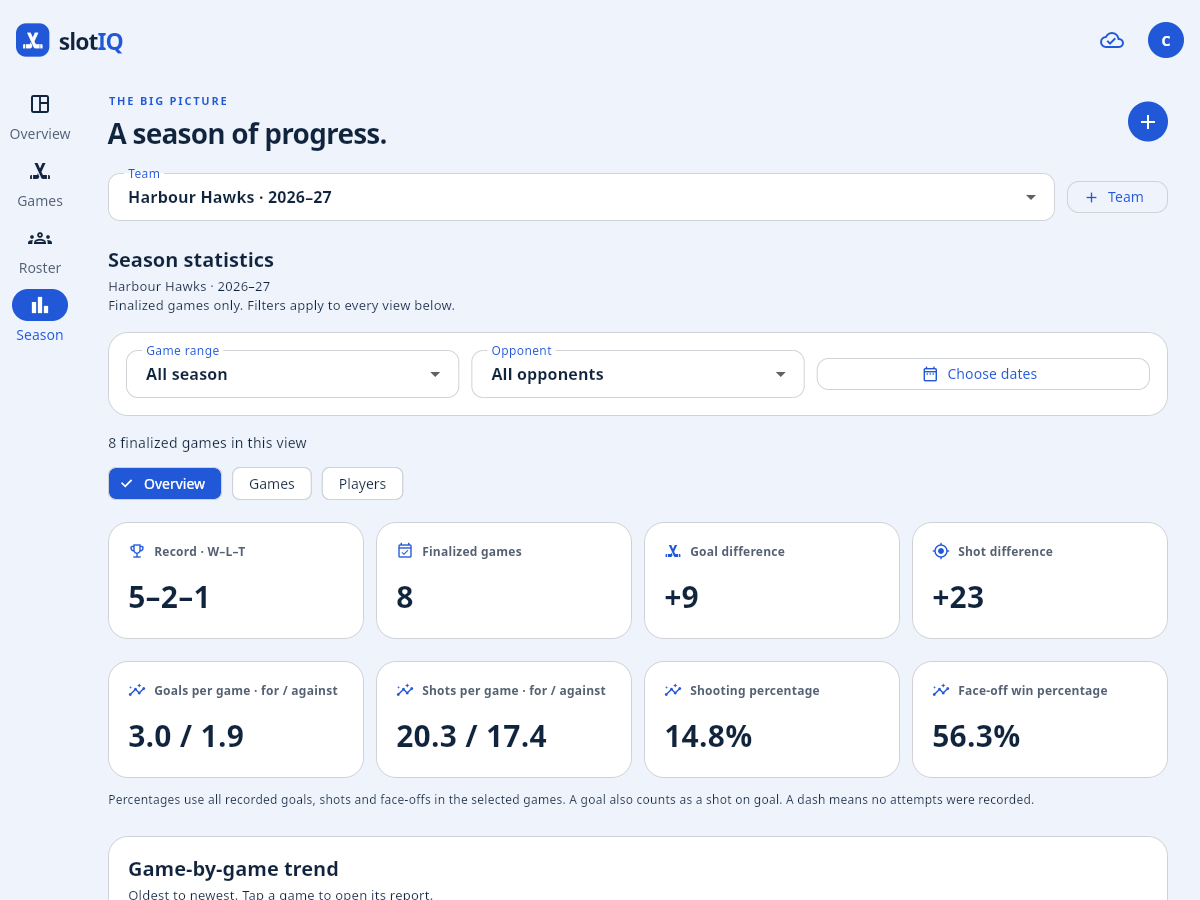
Use Season to move from the team’s overall results to a single game or player. Season statistics use final games only for the selected team; scheduled and live games are excluded.
Select the correct team and season on the home screen, then open Season → Overview. The overview shows the win–loss–tie record, goals and shots for and against, per-game averages, Goal % and face-off percentages, penalties, and trends across games.
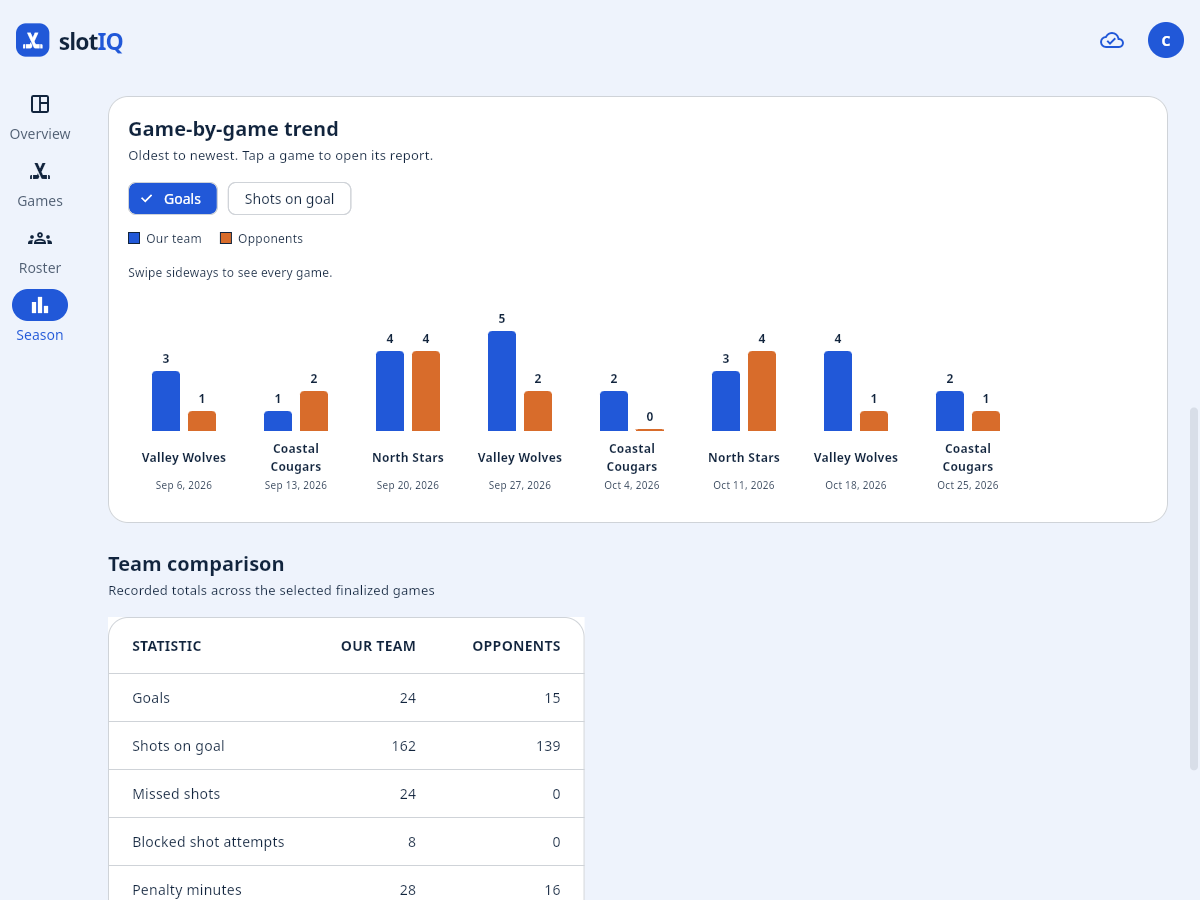
In the game trends chart, switch between Goals and Shots on goal to compare your team and its opponents across the selected games. The legend identifies each side using your chosen colors. Swipe sideways for more games, or tap a game’s bars to open its details.
The season is the label saved with that team. SlotIQ does not split a hockey season at January 1. Create a separate team workspace for a new season so each roster and game history stays distinct.
A completed game opens with Shots by period in its Rink view. The list shows each team's counts for Total and every period. Select a row to highlight it and show those shot locations. Periods 1–3 stay listed even with no shots; additional periods appear when present.
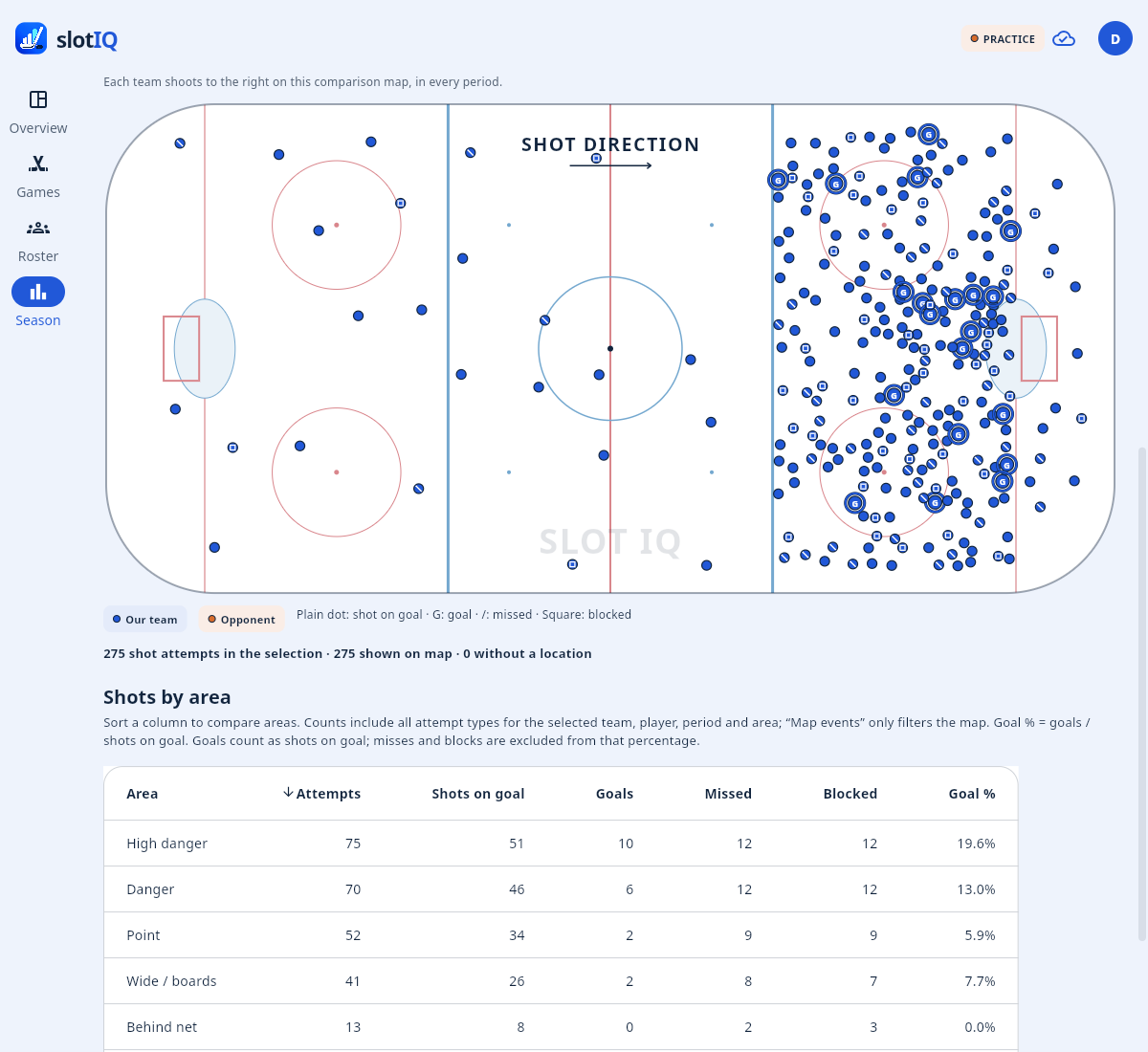
Shots on goal includes goals. Choose All attempts to include misses and blocks in both the counts and map. Your team attacks right and the opponent attacks left across all periods. Shots without locations remain in the counts, with a separate note below the map. Use Timeline to review or correct individual plays.
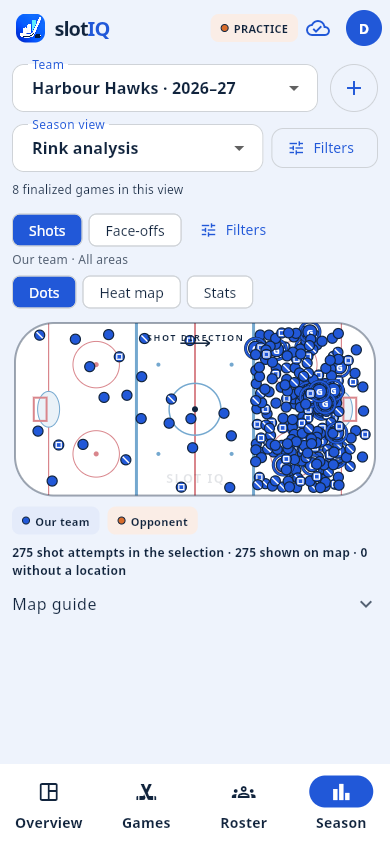
On a phone: use Season view to choose a view, and the season’s Filters button for game range, opponent and dates. Inside rink analysis, Filters opens the team, player, period and area controls in a sheet. Your choices remain visible in a short summary. Use Dots or Heat map for the rink, or Stats for sortable rows; tap a row to reveal all counts. Face-off Stats switches between By spot and By player.
In Rink analysis → Shots, filter the team, player, period and area. Sort the area table by attempts, shots on goal, goals, misses, blocks or Goal %. Map events selects the attempt types displayed on the rink. Goal % means goals divided by shots on goal, multiplied by 100. Goals count as shots on goal; missed and blocked attempts are excluded from this percentage.
Choose Face-offs to compare wins, losses and win percentage at each of the nine dots or across defensive, neutral and offensive zones. Select a player or area to narrow the results; the player table compares your players in that same selection. Map result shows wins, losses or both without changing the table’s win-percentage denominator.
Switch between Dots and Heat map to see individual events or their concentration. With Both selected, your team attacks right and opponents attack left across every period and game. Single-team shot maps align the shooting team to the right; face-offs align to your team attacking right. Heat colors show event density, not scoring probability.
Choosing a specific Shot area softly highlights that exact region on the rink, in both dot and heat-map views. It stays visible even when the selection contains no plays. Choose All areas to clear the selected-area highlight. No location has no region to shade.
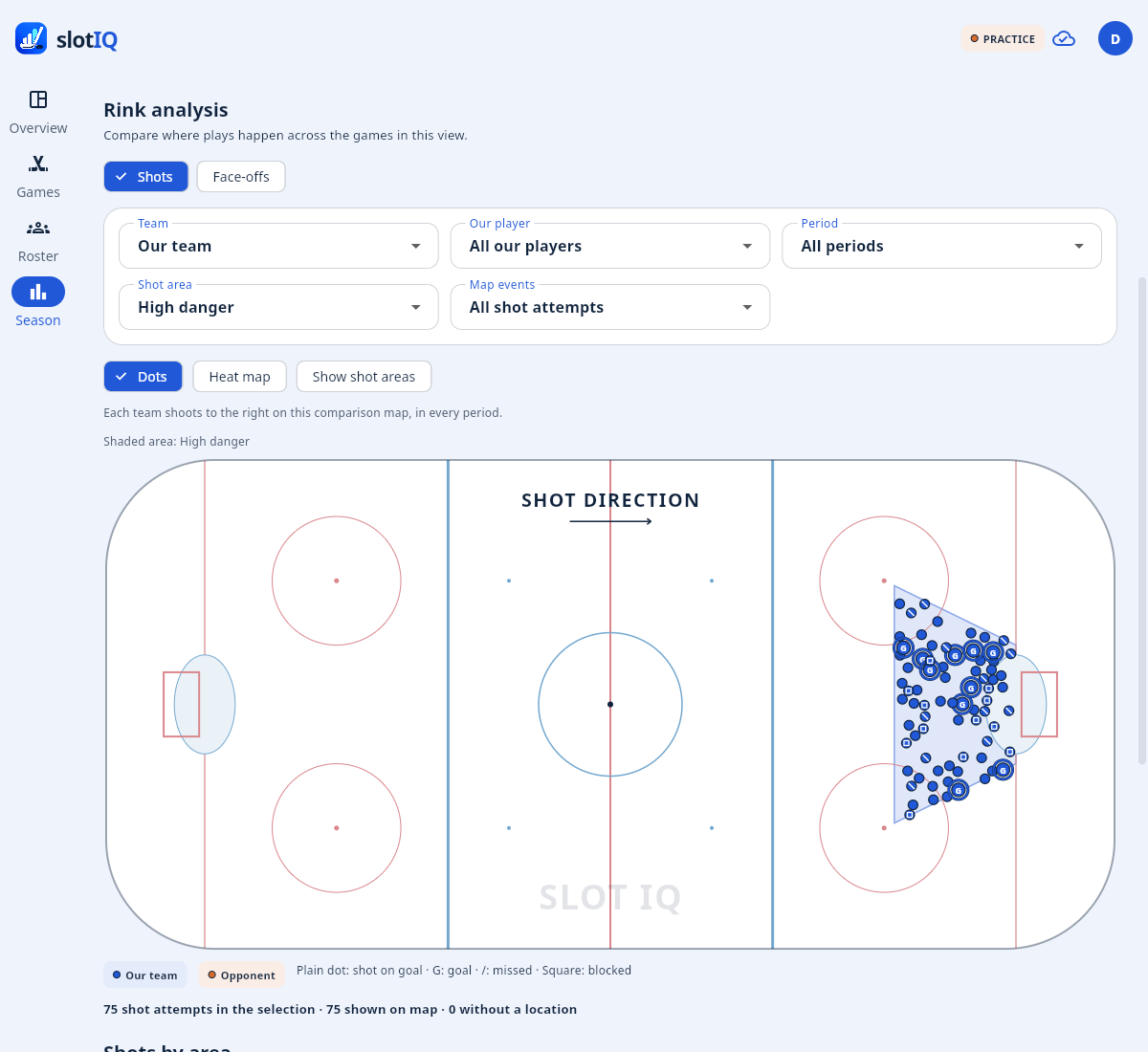
Show shot areas adds a broader reference overlay for the high-danger slot, danger around it and point near the attacking blue line. The location table also separates wide/boards, behind-net, neutral and defensive attempts. These are SlotIQ’s fixed descriptive bands, not an expected-goals model. Plays without a recorded location remain in the No location count and are not plotted.
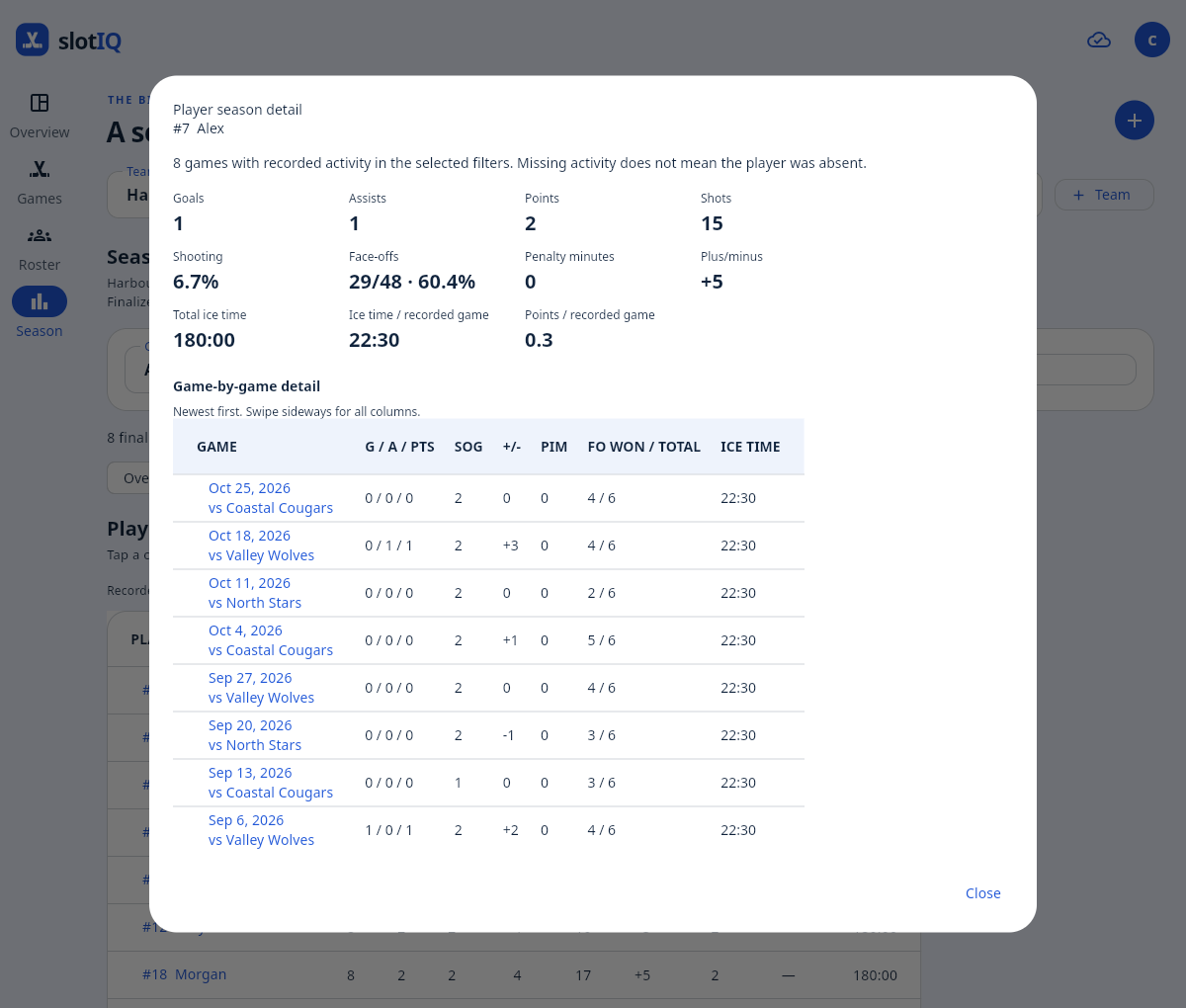
A player’s recorded-game count includes games with an event, on-ice or goaltender entry, assist or shift recorded for that player. A roster entry alone does not prove they played. Averages per recorded game use that count.
Season percentages combine the underlying events: total goals divided by total shots on goal, or total face-off wins divided by total recorded face-offs. They are not averages of each game’s percentage. A dash means there is no recorded denominator. Team penalty minutes include penalties without an assigned player; player totals include only penalties assigned to that player. Power-play and short-handed goals are counts, not power-play efficiency percentages.
| Column | Meaning |
|---|---|
| G / A / PTS | Goals / assists / total points |
| SOG | Shots on goal; goals also count, while missed and blocked shots do not |
| +/− | Calculated from the skaters recorded on goals; scoring-team power-play goals are excluded |
| PIM | Recorded penalty minutes |
| FO% | Face-off win percentage; a dash means no recorded face-offs |
| ICE TIME | Running-clock time accumulated in recorded shifts |
| RECORDED GAMES | Selected final games with recorded activity for that player, not verified attendance |
Use the game’s Print or share game report icon, or the Export report icon in Statistics. SlotIQ generates a PDF with the score, player statistics, shot locations, and game events. In the browser, the report downloads as a PDF; open it in your usual PDF viewer to print or share it. Native apps use the device’s print/share interface.
The report includes local data on the device that creates it. Sync all recorders first for a complete team report. If local edits are still waiting to upload, the report notes that it includes unsynced changes.
YOUR VIEW OF THE GAME
Open Account → Appearance, or choose Appearance on the sign-in screen. Electric Blue is the default.
Pick a preset, then edit individual colors if you like: app background, cards and dialogs, preferred text, buttons and accents, scoreboard, both teams’ shots, players on the ice or bench, and the rink ice and lines.
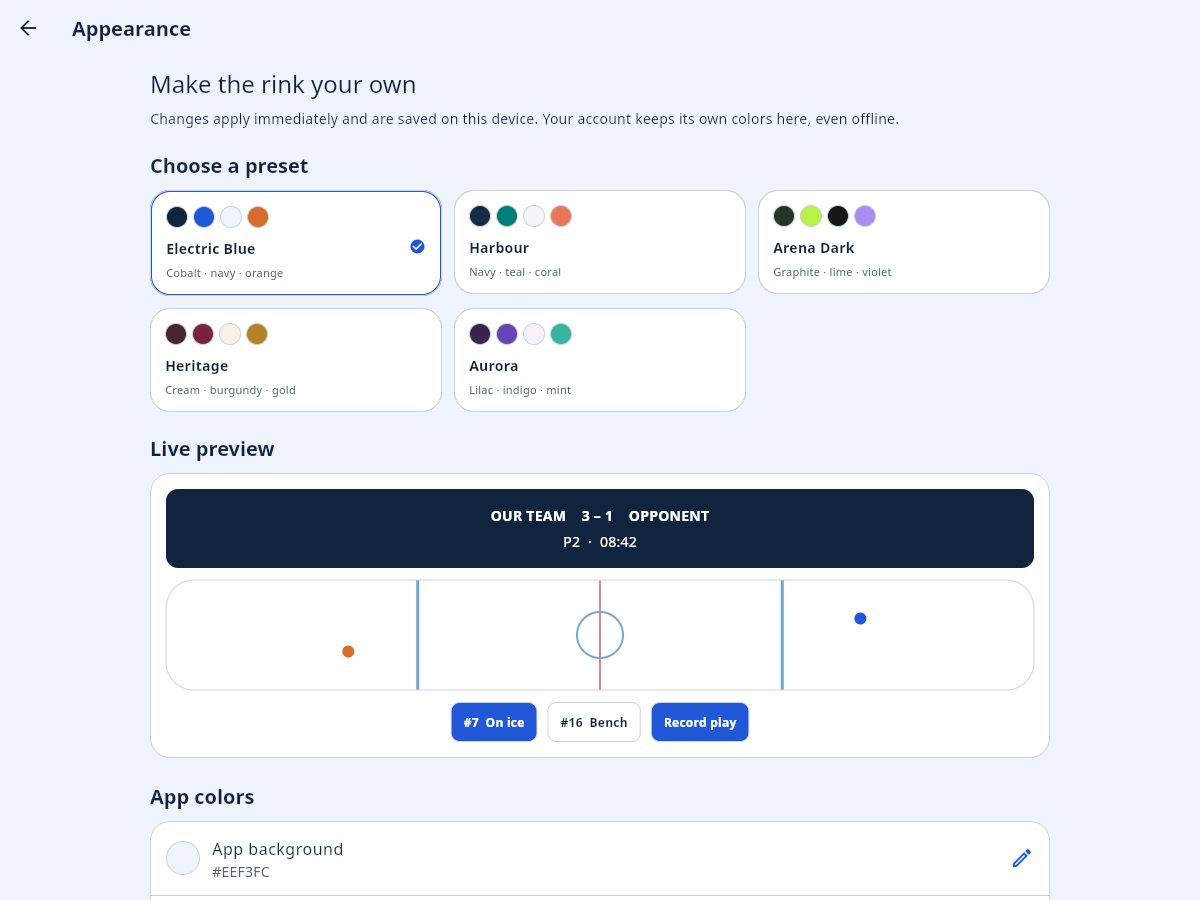
Use the hue, saturation, and brightness controls or enter a six-digit Hex color. Done closes the picker. Use Reset color for one color or Restore [preset] colors for the whole preset.
Appearance is saved separately for each account on the device and works offline. It does not change another recorder’s view or sync between devices. The sign-in and practice views use the device preference.
Text automatically uses a readable foreground when needed. Shot markers retain outlines and readable goal letters. PDF reports carry your selected game colors onto white paper with readable text.
A PRIVATE TEAM SPACE
SlotIQ uses private accounts. There is no public signup. Ask Support, your Team Creator, or a Coach for access. Invitation and password-reset emails are not sent automatically.
Support opens Account → Support → Users and chooses Create user. Enter the name, email and initial password. Leave the optional team empty to create an account without access to any team. Enable Team Creator if the person should create their own teams. Each new team gives its creator full team access; it does not expose anyone else's teams.
Support can search and edit accounts, change email addresses, reset passwords, deactivate accounts, or change account permissions. Permission changes take effect when devices reconnect. Removing Team Creator permission stops new team creation while preserving control of existing teams. The last active Support account is protected.
Select the team and open Account → Team access. A Team Creator can assign Coach, Recorder or Viewer; a Coach can assign Recorder or Viewer. Enter the person's email. With Create a new account on, also enter a display name and an initial password of at least 12 characters. To add an existing account, leave that switch off. Choose Add member.
Share initial credentials privately; no email is sent. Team membership does not grant permission to create separate teams. Adding someone also does not assign them a game duty: use Assign recorders afterward.
A Team Creator or Support can use Account → Archive team after all live games are finished. Games, players and statistics stay available for viewing. Open Account → Archived teams to view them. The Creator or Support can restore the team to resume editing. Unsynced edits wait while a team is archived or the required permission is missing.
Support can search all teams, open their workspaces, and change a team's creator. Activity records account and permission changes, support edits and game reopening. Passwords are never included in Activity.
Use Account → Change password with the current password, a new password of at least 12 characters, and its confirmation. Other signed-in devices will need to sign in again; the device making the change stays signed in. If you have forgotten the password, contact Support for a password reset.
READY FROM YOUR HOME SCREEN
Install the SlotIQ web app on Android or iPhone, then open it from its home screen icon. Start at slotiq.virtualdangle.com/app.html while connected to the internet.
If you already record in a browser, use Sync now there and resolve any pending changes or conflicts first. Keep that original browser and its data until everything is synced. An installed web app may have separate storage; local work does not necessarily transfer.
On Android, iPhone and iPad, SlotIQ shows a home-screen reminder on this page and on the app's sign-in and overview screens. Choose Install SlotIQ to open the browser's install dialog when available. Otherwise choose Installation steps, or Add to Home Screen on Apple devices. Not now hides the reminder for seven days; Install & storage remains available. The reminder stays hidden when SlotIQ is opened as an installed app.
Choose Install & storage on the sign-in screen or from Account to open Install & protect saved games. SlotIQ automatically requests persistent storage at startup; the browser decides whether to grant it and may not show a prompt.
Storage protection is not a backup. It does not protect against clearing browser/site data, uninstalling, or losing the device. Continue syncing all recorders and checking that no changes are waiting to upload. Installing the app alone does not confirm storage protection.
The signed Android APK remains available for Android 7.0 or later, at version 1.5.0 (build 11). Download it on the phone and open the downloaded file. If Android asks, allow that browser or file app to install the download, then follow the prompts.
The APK is provided directly for personal testing; it is not a Play Store listing. A native iPhone/iPad build is not currently available. Use the installed web app on iPhone.
SlotIQ checks for updates when opened, when you return to it, and periodically while it is open. Once a required update is detected, an Update required screen blocks recording and navigation until a newer build is installed. Cancelling the installer or restarting the app does not remove that requirement. Your saved games and pending uploads stay on the device.
No connection at the rink? Recording remains available until the device learns that an update is mandatory. A requirement already detected stays in place offline; reconnect to download the update. Keep SlotIQ current before game day. Store releases must be available to the intended testers before a required version is announced.
BACK TO THE GAME
Check your team role and the game’s recording assignments. People with View only access cannot write, and team members can record only the duties assigned to them. A final game also disables new plays, clock changes, and shifts.
Shared clock updates need a connection. Check the cloud icon and sync. Meanwhile, confirm the period and time in the event form; a stale clock should not determine the timestamp of an important play.
Set clock pauses play intentionally. Choose Start clock when play resumes. Previously accumulated player ice time remains intact.
Check Timeline for the wrong team, player, event type, or a duplicate. A goal already counts as a shot on goal, so do not enter a second shot for the same goal. For plus/minus, check the recorded skaters and team strength on the goal.
Reaching zero or moving to the next period closes open shifts. Select the players for the next face-off, then start the clock.
Keep the app and its data on the original device. Reconnect, sign in to the same account if needed, and review Saved & synced. Do not clear storage or uninstall while those changes are waiting.
No. Practice data is separate and never uploaded. Entering practice recreates one live game and eight completed games with sample shots, goals, face-offs, penalties and ice time. Choose Explore sample season on the overview, or open Season, to try the filters, player totals and rink analysis. Leaving practice clears that workspace. Use Account → Leave practice to return to sign-in. Keep real game records in your signed-in team account.